
DigiCert CertCentral
Our DigiCert CertCentral integration allows you to enrich the certificate information in Certificates with information stored in your CertCentral account. Correlating the data not only means that you have all your information in one place, but we can also automate certain tasks that you would otherwise need to do manually.
Create a CertCentral API key
Section titled “Create a CertCentral API key”To set up the integration, you will first need to generate a read-only CertCentral API key:
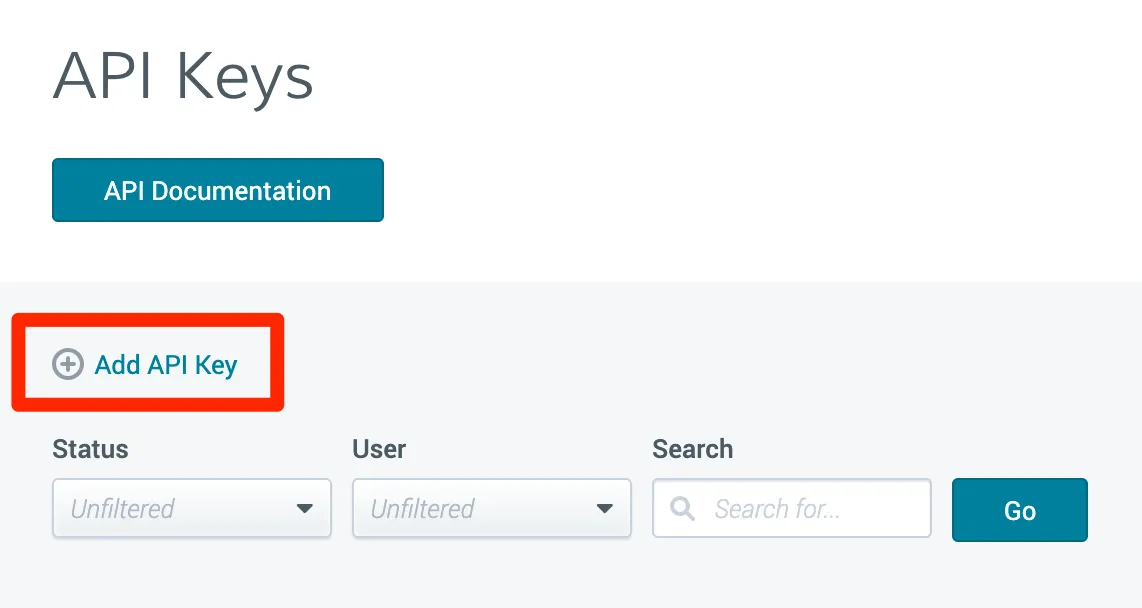
- In CertCentral, click on Automation in the left-hand side menu, then choose the API Keys suboption.
- Click on the Add API Key text. This link is quite small and not obvious; look for it under the API documentation button.
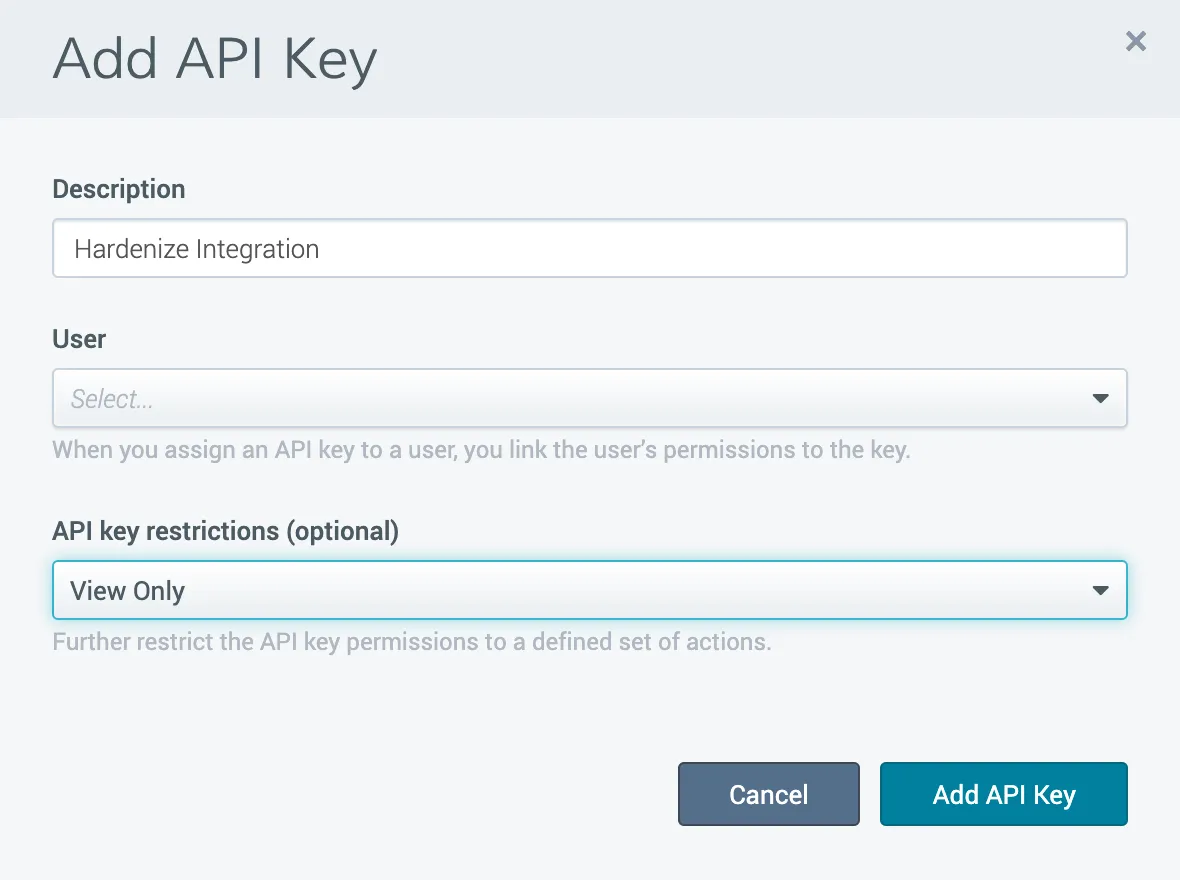
Name the key Certificates Integration and under restrictions specify View Only. Although optional in the dialog, this restriction is essential so that we don’t get write access to your account — it limits the key to GET requests only. Attach the key to a user account in CertCentral that has the Administrator role.
Enable the integration in Certificates
Section titled “Enable the integration in Certificates”With the API key in hand, open your Certificates account, go to the Integrations page and:
- Click Add New Integration on the button bar, then select DigiCert.
- Name the integration and add a reference if you wish. If you wish to use the CertCentral account identifier as the reference, you’ll find it in the drop-down menu under the organization name in the top-right corner of the portal.
- Add the API key generated in CertCentral and click Save Integration.
- Once saved, click Test in the integration’s actions in the table. If it succeeds, then ensure the integration is enabled and enable it otherwise using the row actions. Your new integration is now active and will run shortly.
Troubleshooting
Section titled “Troubleshooting”If a 403 error is shown when testing the integration, check the following:
- Check that you’ve entered the correct and complete API key.
- Check the audit logs in CertCentral for any errors.
- CertCentral supports restricting access to specific IP addresses. Check if this is enabled in your CertCentral account here.
-
Note that if a separate user account is used to generate the API key, then different IP restrictions can be configured.
-
You can check your API key is working correctly by using the following cURL command for showing the list of users from your account, replacing
api_keywith your key:Terminal window curl -X GET \'https://www.digicert.com/services/v2/user' \-H 'Content-Type: application/xml' \-H 'X-DC-DEVKEY: api_key'
-
If successful, then the response will be the list of users in the account. If unsuccessful, then an “Access Denied” response will be shown:
<?xml version="1.0"?><error_list> <errors> <error> <code>access_denied|access_denied_invalid_key</code> <message>Access denied due to access_denied_invalid_key.</message> </error> </errors></error_list>